Java Edition
Mods, redstone, technical servers
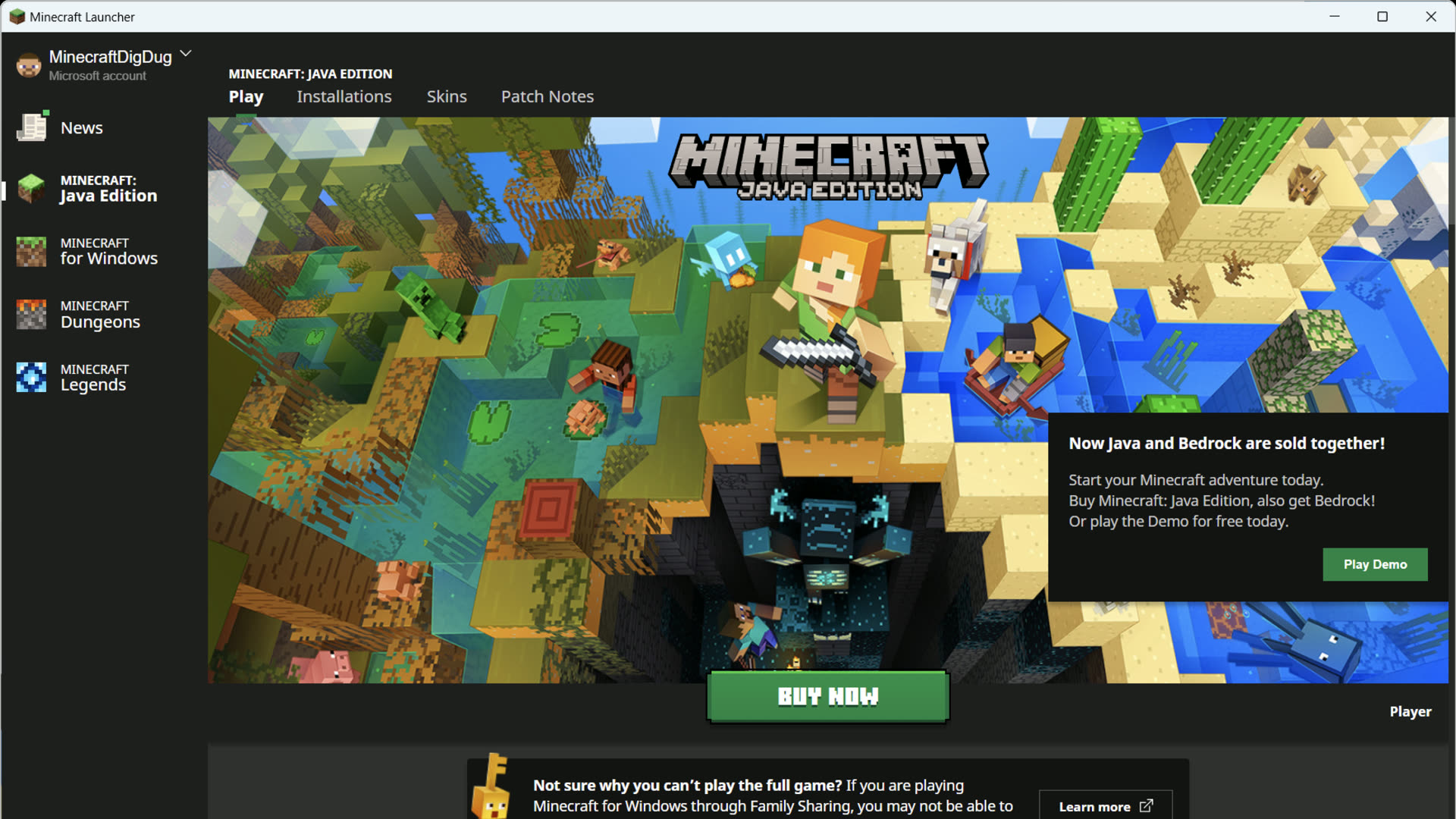
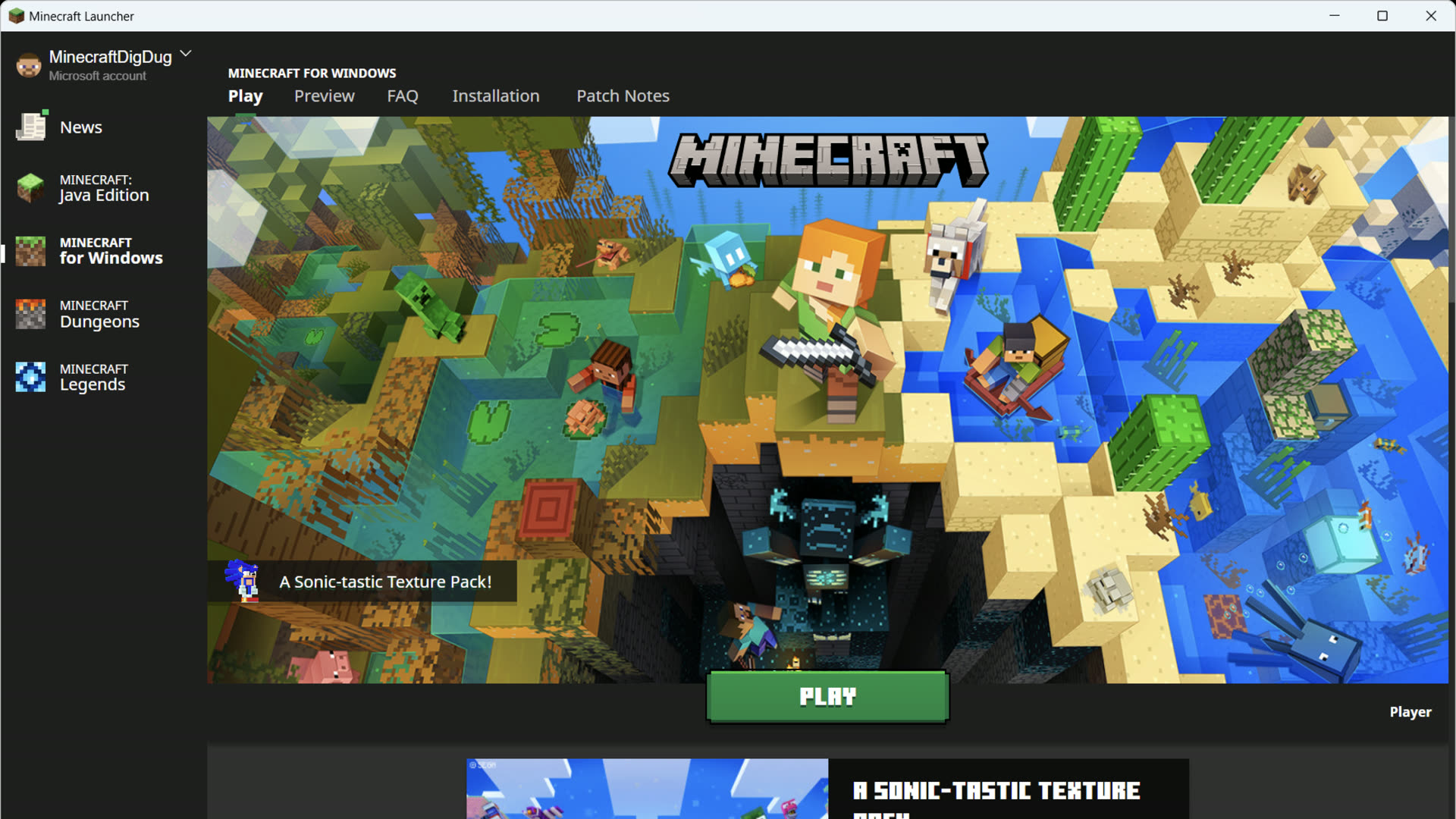
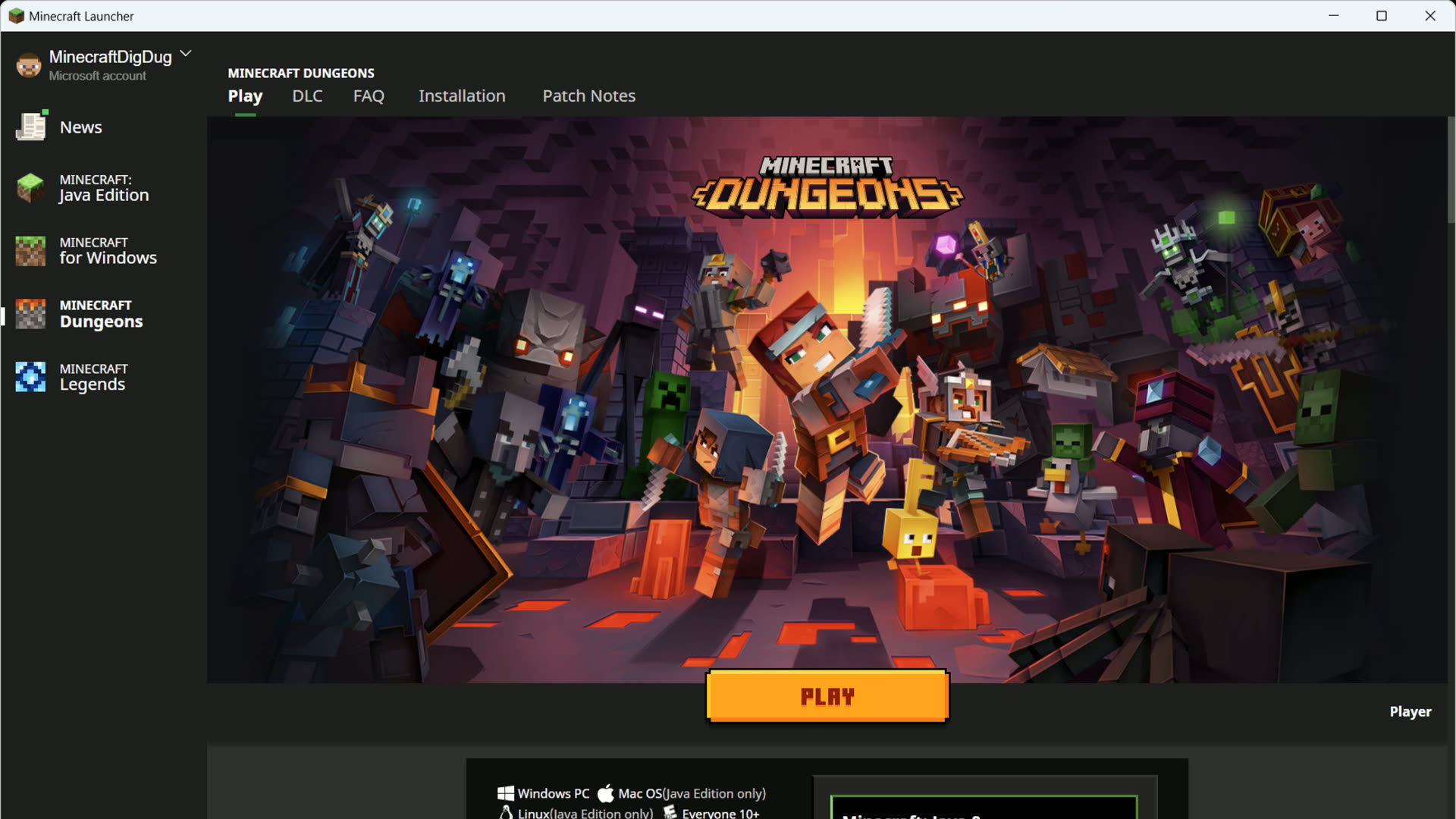
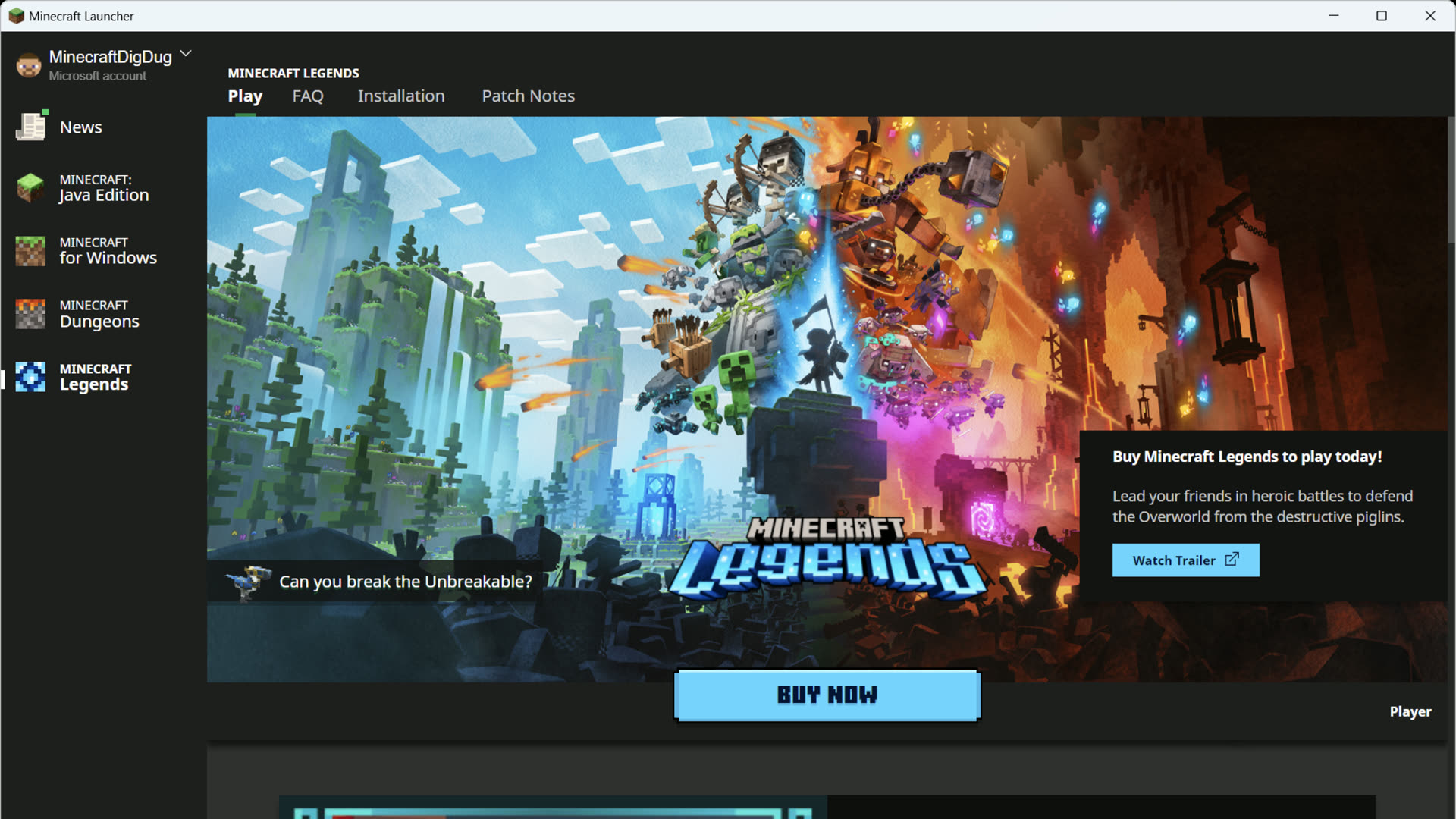
The official Minecraft Launcher mirrors Mojang's edition rail on Windows: Java Edition, Minecraft for Windows (Bedrock), Minecraft Dungeons, and Minecraft Legends share one app and one Microsoft sign-in. macOS and Linux installs deliver Java Edition only. Use this page to compare titles before you download.
Click each edition in the rail to see launcher screenshots and a summary of what that game offers on PC.
Java Edition
Full mod support with Forge and Fabric, community servers, weekly snapshots, and separate installations for every version. Runs on Windows, macOS, and Linux.
Mods, redstone, technical servers
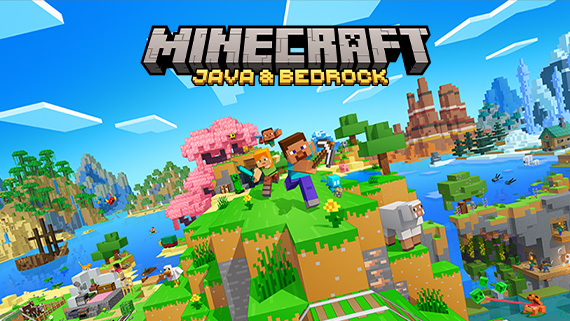
Cross-play with console & mobile
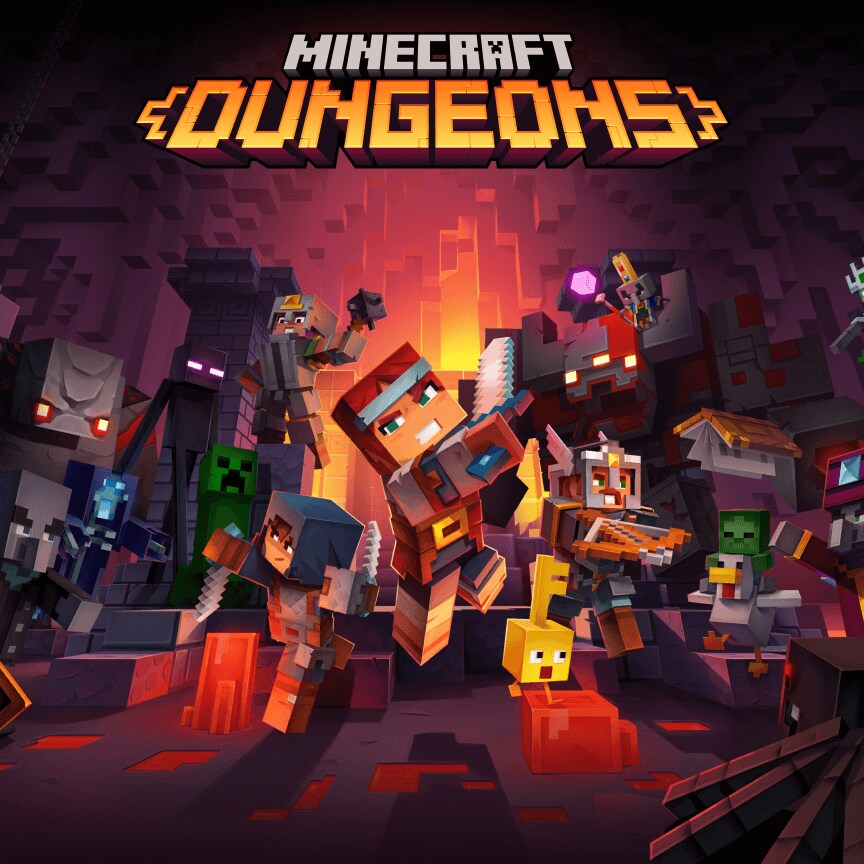
Co-op dungeon crawler
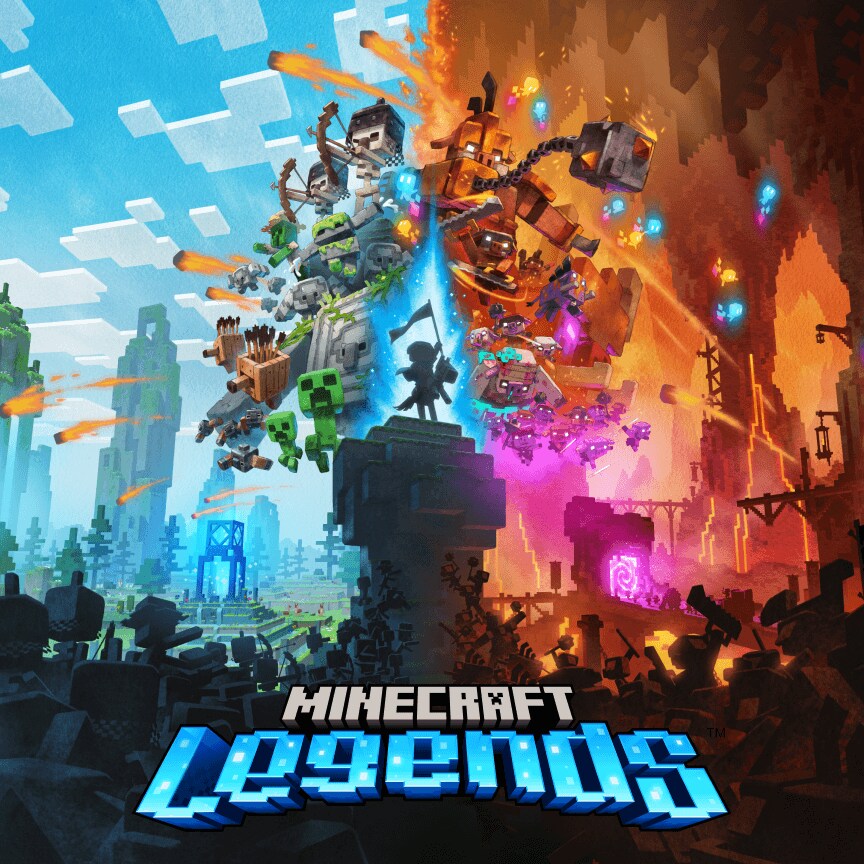
Real-time strategy adventure
Not every edition is available on every OS. Check this before you download or buy a game. New to the franchise? Read what Minecraft is and how dimensions and world saves work in each edition.
| Edition | Windows | macOS | Linux |
|---|---|---|---|
| Java Edition | Yes | Yes | Yes |
| Bedrock (Windows) | Yes | No | No |
| Minecraft Dungeons | Yes | No | No |
| Minecraft Legends | Yes | No | No |
The launcher reads your Microsoft account and shows Play buttons only for games you own or access through subscriptions.
Purchased standalone or bundled in some promotions. Requires a Microsoft account linked to the license. Game Pass for PC also includes Java and Bedrock on Windows when the subscription is active.
Often bundled with Java on PC. Marketplace purchases and Realms subscriptions are tied to your Microsoft account and sync when you launch Bedrock from the launcher.
Separate products with their own purchase or Game Pass entitlements. They appear as additional tiles in the launcher sidebar on Windows when your account qualifies. They do not install on Mac or Linux through the official launcher.
If you subscribe to PC Game Pass or Game Pass Ultimate, sign in with the same Microsoft account in the launcher. Titles included in your plan show without a separate purchase step. If a game says it is unavailable, confirm the subscription is active on xbox.com and that you are signed into the same account in the Microsoft Store.